
How to Convert Piano Audio to MIDI with PianoViz
Convert solo-piano audio to MIDI with PianoViz: test a free 10-second preview, download editable MIDI, and create a falling-note video.
By PianoViz
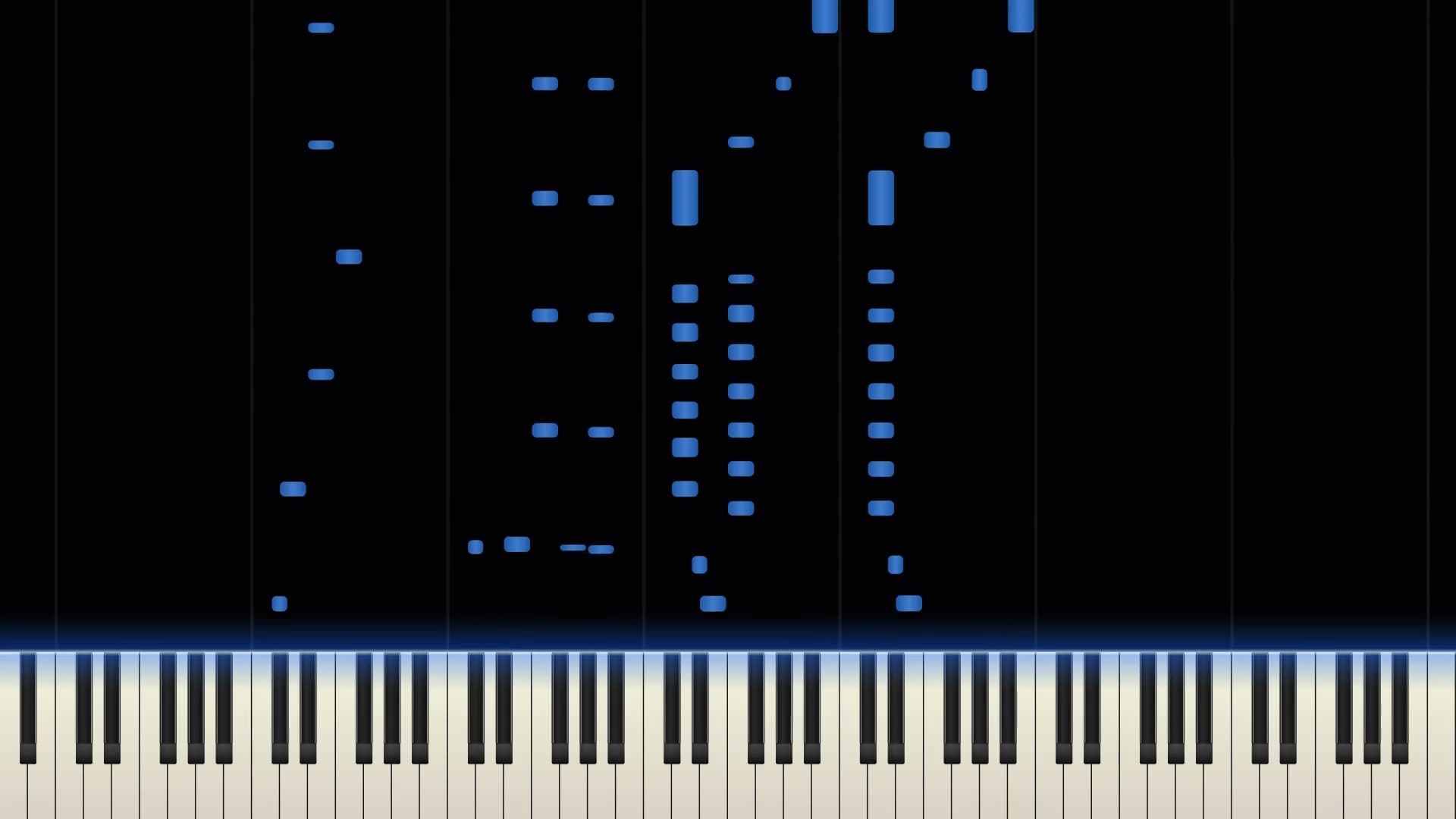
Converting a piano recording into MIDI is useful when the performance exists only as audio but you want editable notes. The result can become the starting point for an arrangement, a practice analysis or a falling-note video. The important thing is to treat transcription as a practical first draft rather than a perfect reconstruction of every musical detail.
When audio-to-MIDI conversion makes sense
If your digital piano already recorded MIDI, upload that MIDI file directly. It contains the original note events and avoids transcription altogether. Audio-to-MIDI is most useful when MIDI was never captured: an acoustic-piano recording, an older performance, a lesson extract or a video whose piano part you want to study.
PianoViz is designed for solo piano. A clean recording gives the transcription engine a clearer view of note attacks and releases. A complete mix with vocals, drums or several instruments is a different and much harder problem, so it is not the intended source.
How to convert piano audio to MIDI with PianoViz
- Prepare the source. Choose the cleanest version of the solo-piano recording. Trim unnecessary silence if convenient, but do not process the file aggressively just to make it louder.
- Upload the audio. Open PianoViz and add the piano recording. If you already have a MIDI file, upload it instead and skip the transcription step.
- Generate the free preview. PianoViz creates a 10-second preview. Use it to check whether the main notes, rhythm and phrasing are represented well enough for your purpose.
- Process the full performance. If the preview is convincing, generate the complete transcription and download the MIDI file.
- Review the result. Import the MIDI into your DAW or notation software and compare it with the original recording. Correct anything that matters to your project.
This short preview step matters because transcription quality depends on the recording itself. Instead of relying on a universal accuracy promise, you can judge the result on your own piano, room, microphone and playing style.
How to get a cleaner transcription
- Prefer solo piano. Other instruments and voices can be mistaken for piano notes.
- Reduce background noise. Conversation, metronome bleed and handling noise create extra events for the model to interpret.
- Avoid excessive room sound. Strong reverberation and long sustain can make note boundaries less distinct.
- Use the best source you have. A direct digital-piano recording or a close, balanced acoustic-piano recording is usually easier to analyze than audio copied from a compressed social-media video.
- Make the opening representative. The free preview uses the first ten seconds of the uploaded file. If the passage you need to evaluate occurs later, create a trimmed copy that begins at that passage before uploading it; keep the original file unchanged.
What to review after downloading the MIDI
PianoViz gives you a downloadable MIDI result; detailed note correction happens in the music software you already use. Listen to the MIDI beside the source recording and focus on the errors that would affect your goal:
- missing or duplicated notes in dense chords;
- notes placed in the wrong octave;
- timing that no longer follows intentional rubato;
- velocities that make the musical balance feel unnatural;
- sustain behavior that needs adjustment.
Do not automatically quantize the entire performance. Tightening every note to a rigid grid can erase the timing that made the original expressive. Correct obvious problems first, then listen again before making broader edits.
Editing the downloaded MIDI does not update the existing PianoViz project. Importing a corrected MIDI creates a new MIDI-based project, which uses generated piano audio rather than the original recording and follows the normal credit rules for a full project and video export.
From a MIDI transcription to a piano video
The downloaded MIDI is useful on its own, but PianoViz can also turn it into a customizable falling-note visualization. You can adjust the falling speed, note and glow colors, particles, keyboard guide line and note or key labels. Videos can be exported as Full HD MP4 in horizontal 16:9 or vertical 9:16 format at 30 or 60 frames per second.
That makes one workflow useful for several people: a teacher preparing a visual explanation, a creator making a piano tutorial or a pianist turning an existing performance into a social video. You can start from audio when that is all you have, or use original MIDI for the most direct route. The companion guide covers the complete audio-or-MIDI-to-video workflow.
What PianoViz does—and does not do
PianoViz transcribes solo-piano audio, accepts MIDI directly, produces downloadable MIDI from a full audio transcription and creates falling-note video. It is not a sheet-music or MusicXML generator, a stem-separation service or a full MIDI editor. It also does not replace the final musical judgment needed for a publication-ready transcription.
Being clear about that boundary is useful: the service handles the slow first conversion and the visual export, while you remain in control of any detailed musical correction.
A simple workflow for teachers and creators
- Start with original MIDI when available; otherwise upload clear solo-piano audio.
- Check the first ten seconds in the free preview.
- Generate the complete PianoViz project if the preview suits your recording.
- Style and export the falling-note video from that project so an audio upload keeps its original performance.
- Download the MIDI separately if you also want to inspect or edit the transcription in a DAW or notation application.
Ready to test a recording? Create a free PianoViz preview and judge the transcription on the first ten seconds of your own performance.
Frequently asked questions
Can PianoViz convert an MP3 piano recording to MIDI?
PianoViz accepts piano audio for AI transcription. Generate the free preview with a clear solo-piano source before committing to the complete file.
Is the generated MIDI perfectly accurate?
No transcription service can promise the same result for every recording. Noise, room sound, pedal and musical density all affect the result.
Can I edit individual notes inside PianoViz?
PianoViz is not a full in-browser MIDI editor. Download the MIDI and make detailed changes in a DAW or notation application.
Can PianoViz create sheet music?
No. PianoViz exports MIDI and customizable falling-note video, not sheet music or MusicXML.
Should I use audio or MIDI?
Use original MIDI whenever you have it. Choose audio transcription when the performance was captured only as sound.